

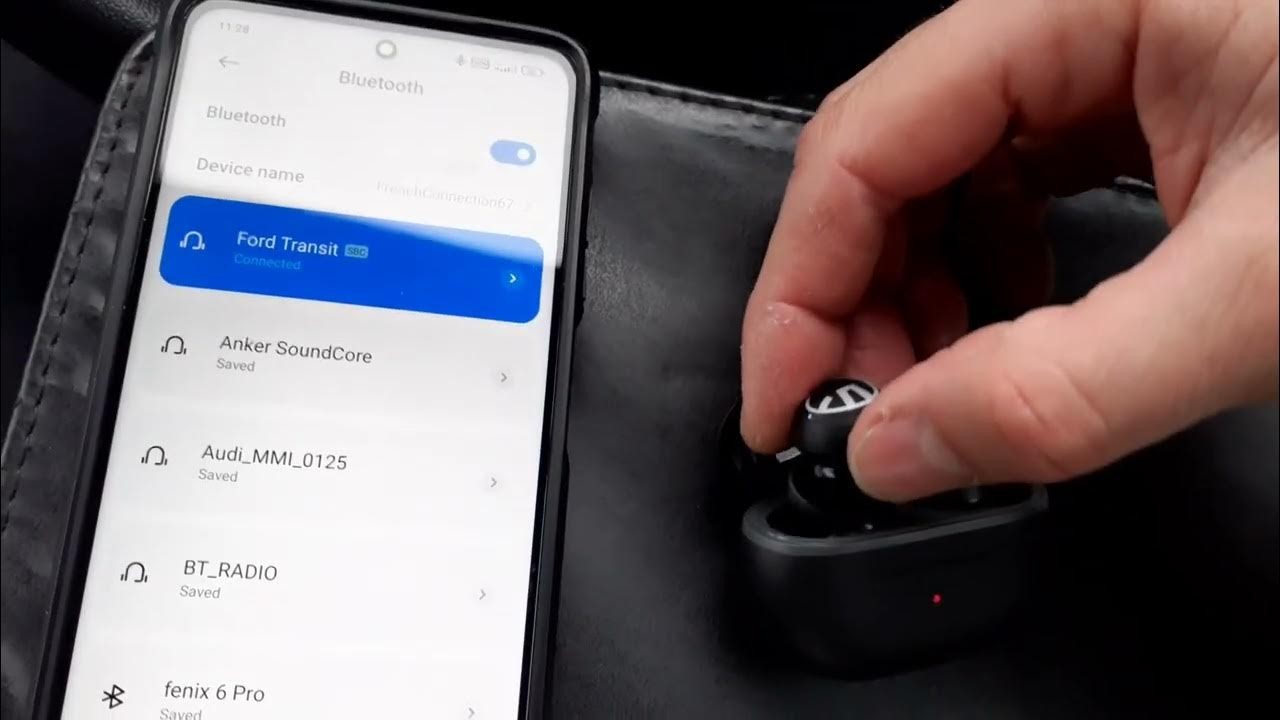
Bluetooth earbuds have become an essential part of everyday life, offering wireless convenience for listening to music, taking calls, and even working out. However, one of the most common frustrations users face is Bluetooth connection problems. Whether it’s difficulty pairing, frequent disconnections, or poor sound quality, Bluetooth connectivity issues can be annoying and disruptive. Fortunately, most of these problems can be fixed with a few simple steps. This detailed, step-by-step guide explains how to troubleshoot and fix Bluetooth connection issues in earbuds effectively, ensuring a stable and seamless listening experience every time.
Step 1: Check if Bluetooth Is Enabled and Working Properly
Before diving into advanced troubleshooting, make sure your device’s Bluetooth is actually turned on and functioning correctly. Sometimes, the issue is as simple as a disabled Bluetooth setting or a temporary software glitch. Go to your phone or device’s settings and confirm that Bluetooth is switched on. Try toggling it off and back on again to refresh the connection. It’s also a good idea to check if your earbuds are in pairing mode and visible to nearby devices. If the device fails to detect your earbuds, this may indicate a software issue that can often be fixed with a quick reboot or reset.
Step 2: Ensure Your Earbuds Are in Pairing Mode
Bluetooth pairing mode allows your earbuds to connect to a new device. Each model has its own method to enter pairing mode, usually by holding the power or multifunction button for several seconds. Check the LED indicator on your earbuds—most flash blue or red when in pairing mode. If you’re having trouble connecting, it’s possible the earbuds are still linked to another device. In that case, disconnect or turn off Bluetooth on the other device first. Once the earbuds are ready, select them from your phone’s Bluetooth list to establish a fresh connection. If the pairing fails, try deleting the old connection record and pairing again.
Step 3: Restart Both Your Device and Earbuds
One of the most effective yet overlooked solutions is a simple restart. Restarting both your phone and your earbuds clears temporary glitches and refreshes the Bluetooth system. Power off your earbuds completely and restart your smartphone or tablet. After rebooting, turn Bluetooth back on and attempt to reconnect. This step often resolves issues where the connection becomes stuck or unresponsive. If your earbuds have a charging case, placing them back in the case for a few seconds can also help reset the Bluetooth signal. Once both devices are powered back on, initiate pairing as if it were a new setup.
Step 4: Forget and Reconnect the Bluetooth Device
If restarting doesn’t help, the next step is to remove the existing Bluetooth pairing record and start from scratch. On your phone, go to the Bluetooth settings and locate your earbuds under the list of connected or previously paired devices. Select the option to “Forget” or “Remove” the device. This clears the old pairing data that might be causing conflicts. Then, place your earbuds back into pairing mode and reconnect them as a new device. Re-pairing can solve problems related to outdated or corrupted Bluetooth settings, restoring a clean connection that often eliminates dropouts or pairing failures.
Step 5: Check for Interference and Range Issues
Bluetooth connections can be disrupted by interference from other wireless devices or obstacles between your earbuds and your phone. Common sources of interference include Wi-Fi routers, microwaves, and other Bluetooth devices operating nearby. Try using your earbuds in a different location or turning off unused wireless devices to minimize interference. Also, ensure that your earbuds are within the recommended range—usually around 10 meters (33 feet). If you move too far away from your device or have thick walls in between, the Bluetooth signal can weaken, leading to audio cuts or disconnections. Keeping both devices close together helps maintain a strong and stable connection.
Step 6: Update Firmware and Software
Outdated firmware in your earbuds or operating system on your device can cause compatibility issues with Bluetooth connections. Manufacturers frequently release firmware updates to fix bugs, improve performance, and enhance connectivity. Many modern earbuds have companion apps that allow you to check for and install firmware updates directly. Similarly, updating your phone’s operating system can resolve hidden Bluetooth bugs that interfere with pairing and performance. Always ensure both your earbuds and smartphone are running the latest versions of their software. Performing these updates not only improves connectivity but can also extend battery life and audio quality.
Step 7: Reset Your Earbuds to Factory Settings
If none of the above steps work, performing a factory reset on your earbuds may be the best option. A reset clears all paired devices, settings, and stored data, restoring your earbuds to their default condition. The reset method varies by brand—typically, it involves holding down specific buttons for several seconds while the earbuds are in the charging case or powered on. Once reset, re-enter pairing mode and connect them to your device again. This step often resolves stubborn connection issues that result from corrupted firmware or long-term pairing conflicts. After resetting, treat your earbuds as brand-new and set them up again from scratch.
Step 8: Check Hardware and Battery Conditions
Sometimes, Bluetooth issues aren’t software-related but stem from hardware problems or low battery levels. Ensure both earbuds and your connected device are sufficiently charged. Low battery power can cause unstable connections or one earbud cutting out intermittently. If your earbuds are old or frequently exposed to moisture, sweat, or dust, their internal components might be affected. Clean the earbuds gently and inspect the charging case and connectors for debris or damage. Also, verify that both earbuds are seated correctly in the charging case when not in use. In rare cases, hardware malfunctions may require professional repair or replacement, especially if your earbuds no longer enter pairing mode or won’t power on.
Step 9: Optimize Bluetooth Settings and Audio Performance
Modern Android and iOS devices have advanced Bluetooth settings that can impact connection stability. Some phones allow you to enable or disable features like dual audio or HD audio codecs such as aptX or AAC. If your earbuds are having trouble maintaining a stable connection, try switching to a more compatible codec or disabling advanced features temporarily. Keeping too many Bluetooth accessories connected simultaneously can also affect performance, so disconnect unused devices. Additionally, turning on airplane mode for a few seconds and then re-enabling Bluetooth can refresh wireless connections. These small tweaks can make a noticeable difference in maintaining a smooth audio experience.
Conclusion
Fixing Bluetooth connection issues in earbuds doesn’t have to be complicated. By following a structured, step-by-step approach, you can easily identify the root cause and apply the right solution. Simple actions like restarting devices, re-pairing, or checking for software updates often solve most connectivity problems. Understanding how interference, outdated firmware, or hardware issues affect your earbuds will help you prevent future disconnections and ensure a reliable connection. With proper maintenance and regular updates, your Bluetooth earbuds can deliver seamless audio performance whether you’re listening to music, watching videos, or making calls. The key is patience and careful troubleshooting—once resolved, you’ll enjoy the freedom of wireless sound without interruption.

