

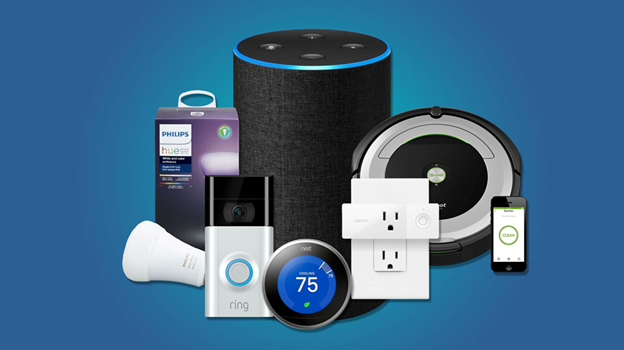
Smart home devices have enabled human beings to live an easier life, as they can now operate lighting, security, temperature, and entertainment systems with a mere voice command or even through mobile apps. Nevertheless, like any other technology, this equipment occasionally breaks down or fails to function properly. When this occurs, it is common to reset the device, and the problem is typically corrected. The difficulty, however, is that you must reset without losing all your settings, automations, and preferences. The fear of losing all the settings that people have made is compelling the majority to hesitate in resetting the device, because they constantly have to make new preparations. Fortunately, it is possible to reset smart home devices without loss of data. This guide provides all the information on how to restart smart home devices without losing settings, ensuring your system continues to run smoothly.
Understand the Difference Between a Soft Reset and a Factory Reset
It is essential to understand the distinction between a soft reset and a factory reset before performing a reset on your smart home device. A soft reset is a commonly used reboot method that re-initializes the device system, without deleting your stored information, such as network or device preferences. It is like restarting your smartphone to address temporary glitches. The factory reset, however, erases all the data and restores the device to its original condition. When you want to correct minor problems without losing settings, a soft reset is the most appropriate option. The type of reset option varies, so you should always check your device’s manual to determine how to perform it and its behavior. Flexibility can be chosen in many smart devices, such as thermostats, speakers, and hubs.
Restart the Device Using Built-in Options
Most devices in the smart home have a restart or reboot option built into their software. This will enable you to update the system without removing it from your smart home network or losing your settings. To illustrate, smart speakers, such as Amazon Echo or Google Nest, can be turned on and off right in their respective apps. The same applies to smart lights and plugs, which can be crossed to fix a mere power cycle, that is, by unplugging a device several seconds before putting it back in the plug, which will restart the system, clearing memory problems in the short term and putting the device back on the Wi-Fi network, fixing most connectivity issues without deleting saved preferences and automations.
Use the Companion App to Perform a Controlled Reset
Practically every home smart device comes with companion apps that enable users to control settings, perform software upgrades, and configure network settings. Controlled reset is also an option on many of these apps. Such a reset removes files from the cache and restarts the software on the device; your connected account and saved routines will be retained. For example, smart camera applications allow you to adjust the network settings without affecting your video storage settings. This is done before the reset, ensuring the app is updated to the latest version. This will guarantee that the reset process is actually working and minimize the chances of data loss. App-based controlled resets tend to be less risky than the physical button-based resets.
Backup Device Settings and Configurations
It is essential to back up the settings of your smart home device before attempting any reset. There are auto-store configurations in the cloud, such as Google Home, Apple HomeKit, or Amazon Alexa, which are considered ecosystems. It implies that your settings could be recovered, regardless of whether you reset your device, as soon as you connect it to your account again. Ensure your device supports cloud synchronization and that it is enabled. If your device does not have automatic backups, it will be helpful to take screenshots of your existing settings or make notes on important settings, such as Wi-Fi names, routines, and automation rules. By doing this, you are guaranteed that when something goes awry during the setup process, you will be able to restore the setup very quickly.
Disconnect and Reconnect Devices Safely
In cases of troubleshooting smart home systems, simply disconnecting and reconnecting a device can resolve performance issues without the need for a full reset. An example is adding and removing a device from your home automation hub, then adding it back, which refreshes communication between the devices. The trick of the matter is to delete it using the app rather than a physical reset button. In this manner, your account data and preferences are kept attached in the system. Many devices can also identify their previous settings after reconnection, particularly when they are connected to the same network or account in the cloud. The method can be applied to smart plugs, cameras, and thermostats that lose connection, but do not require a total reconfiguration.
Update Firmware and Network Settings
Smart home devices often experience connection or performance issues that can be attributed to outdated firmware or a changed Wi-Fi network. This is because, instead of having to reset the device, it is usually possible to fix such issues by updating the firmware and retaining your data. Manufacturers often update it to make it more compatible, more secure, and with fewer bugs. Typically, you can find firmware updates in the device’s application settings. Moreover, when you have changed your Wi-Fi password or router settings, you can update them without necessarily having to restart the device altogether. There are even devices that allow you to make network credential changes directly in the app, without requiring a hard reset. Regular updates of your device and network will ensure a smoother work process and prevent unnecessary data loss.
Reset Through Cloud Services Instead of Hardware Buttons
In the event of a necessary device reset, it can be performed via the corresponding cloud service, rather than using a physical reset button, to preserve data. The majority of smart home systems, such as Alexa, Google Home, and Samsung SmartThings, have account-based resets, which clear connection errors and retain device settings and automations in the cloud. These computer reallocations usually re-establish communication among machines and accounts and do not erase your own customary rites. For example, a smart plug or light bulb can be reset by a cloud-based command to rejoin Wi-Fi without affecting your assigned groups or voice commands. The cloud option also ensures that you have synchronization again, with minimal effort spent on setup, and no preferences are lost.
Reset the Hub or Bridge Without Affecting Connected Devices
If you use a smart home hub or bridge to connect multiple devices, such as Philips Hue or SmartThings, the hub will often serve as the central control point for all the connected devices. Network problems can sometimes be resolved by resetting the hub without disconnecting the attached devices. The majority of the hubs come with a restart or soft-reset feature, which will restart the connection between the hub and the device without removing the paired devices and automations. To maintain that, to access the hub settings, use its app, and instead of performing a factory reset, select the reboot option. After the hub is restarted, it automatically reconnects with the already existing devices. This is a less risky method for trying to reset individual devices and rebuilding your setup from scratch.
Use Power Cycling as a Non-Destructive Reset Method
One of the most secure and easy methods to restart a smart home device and introduce it to a new environment is power cycling without restoring any of the configurations. This entails switching off the device for approximately 10-20 seconds before switching it on again. Power cycling is used to clear temporary memory errors and provides a connection to the Wi-Fi network or Wi-Fi hub. It works especially well with smart lights, cameras, and smart plugs that have stopped functioning properly. Power cycling does not delete any saved settings or accounts, unlike a factory reset. For rechargeable powered gadgets, the effect can be achieved by simply switching them off and on. It is a fast and non-invasive procedure, and it must be exhausted in favor of more drastic reset possibilities.
Reconnect and Restore After Reset
Once you have completed a reset or a reboot, reconnect your smart device to your network and ensure that all the settings are back in order. If your smart home system operates on cloud synchronization, most of your preferences and routines will automatically reappear as soon as the device reconnects to your account. If you have been manually backing up your configurations, please do so now. Test your automation rules, voice commands, and device groupings by confirming that all is working as intended. This last test procedure ensures that your devices are back to normal operation without requiring a complete restart. A well-executed reset would not only restore normalcy but also keep your entire smart home system efficient.
Conclusion
Removing the smart home devices does not necessarily mean erasing all your settings and beginning anew. With the knowledge of how to distinguish between soft and factory resets, how to utilize companion apps, and how to rely on cloud backups, you will be able to refresh your devices safely without altering their configurations. Most problems can be resolved without data loss by performing simple operations, such as power cycling, controlled resets, and firmware updates. It is also a good idea to back up your settings in case of an emergency, so that you can always revert to your original settings whenever necessary. With the right strategy, you can have a stable, effective, and entirely personalized smart home system. A smart reset of smart devices is the smartest way of maintaining the smooth running of your home, but it also conserves you important time and effort.

