

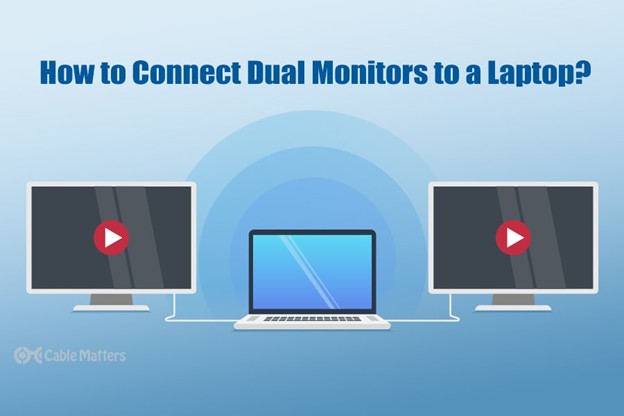
In today’s world of multitasking and productivity, having multiple monitors connected to your laptop can completely transform your workflow. Whether you’re working from home, editing videos, gaming, or simply managing multiple applications at once, a multi-monitor setup can make everything smoother and more efficient. However, for beginners, the process of connecting multiple monitors to a laptop can seem confusing. Questions about cables, ports, adapters, and compatibility often arise. This beginner-friendly guide will help you understand how to connect multiple monitors to your laptop step by step, without the need for technical expertise.
Check Your Laptop’s Graphics Card and Port Compatibility
The first step in connecting multiple monitors to your laptop is understanding what your hardware can support. Not every laptop has the same capabilities when it comes to handling multiple displays. Start by checking your laptop’s graphics card specifications—most modern laptops with integrated or dedicated graphics can support at least two external monitors. You can usually find this information in the system settings or the manufacturer’s website. Next, identify the available display ports on your laptop. Common types include HDMI, DisplayPort, USB-C, Mini DisplayPort, and VGA. Knowing which ports you have will help determine what type of cables or adapters you’ll need for the setup.
Determine the Number of Displays Supported
Before purchasing any extra hardware, it’s important to verify how many monitors your laptop can handle simultaneously. While most standard laptops support one or two external displays, gaming or professional laptops may support three or more. To check this, right-click on your desktop and open the display settings menu. Here, you can see the number of screens detected and configure them accordingly. You can also visit your graphics card control panel—such as NVIDIA Control Panel or Intel Graphics Settings—to check the display output capabilities. Knowing your laptop’s maximum display capacity ensures that you don’t waste time or money on additional monitors that your system can’t support.
Choose the Right Connection Cables and Adapters
Once you know how many monitors your laptop can handle and what ports it offers, the next step is selecting the correct cables or adapters. The type of connection depends on both your laptop and your monitors. HDMI is the most common choice due to its wide compatibility and ability to transmit both audio and video signals. However, some laptops use USB-C or Thunderbolt 3/4 ports that can also output video. If your monitors have different input types, you may need adapters such as USB-C to HDMI, DisplayPort to HDMI, or VGA to HDMI. Investing in quality cables ensures stable performance, higher resolutions, and smoother refresh rates when using multiple screens.
Extend or Duplicate Your Display
After connecting your monitors, you’ll need to configure how they display content. Laptops generally offer two primary modes—duplicate and extend. Duplicate mode mirrors your laptop screen on all connected monitors, which is useful for presentations. Extend mode, on the other hand, turns each monitor into part of one large workspace, allowing you to move applications and windows freely between screens. To set this up, go to your display settings and select the option to extend the display. You can also rearrange the monitors by dragging their icons to match their physical positions on your desk. This makes moving your cursor and windows between screens seamless and intuitive.
Adjust Display Settings for Better Performance
Having multiple monitors connected can sometimes impact performance, especially on laptops with integrated graphics. To optimize your setup, adjust display settings like resolution and refresh rate. For productivity tasks, a lower refresh rate is usually fine, but for gaming or video editing, a higher rate is ideal. You can change these settings from your laptop’s display menu. Additionally, ensure that each monitor is running at its native resolution for the sharpest image quality. If you experience lag or flickering, try reducing the resolution or disconnecting one display to test performance. Balancing visual quality and performance helps create a smoother multi-monitor experience.
Use a Docking Station or External Hub
If your laptop has limited ports or lacks multiple video outputs, a docking station or external hub can be a practical solution. Docking stations connect to your laptop through a single USB-C or Thunderbolt port and expand connectivity options, providing multiple HDMI, DisplayPort, and USB slots. This allows you to connect several monitors without constantly plugging and unplugging cables. Docking stations also help manage cables neatly, reducing desk clutter. When selecting one, make sure it supports the number of displays and resolutions you need. For instance, some models support dual 4K monitors, while others handle three or more at lower resolutions. A reliable docking station simplifies the setup process and ensures consistent performance.
Troubleshoot Common Connection Issues
Even with the right cables and settings, connection issues can still occur. Common problems include one monitor not being detected, flickering screens, or inconsistent display resolutions. Start by checking cable connections and ensuring both the laptop and monitors are powered on. Try reconnecting or restarting your laptop if the issue persists. Updating your graphics drivers is another effective solution, as outdated drivers can cause detection problems. You can also test each monitor individually to isolate the faulty one. If you’re using adapters, ensure they are compatible with your laptop’s output standard, such as DisplayPort Alt Mode for USB-C connections. Patience and a systematic approach are key to resolving setup challenges.
Arrange Your Workspace for Comfort and Productivity
Setting up multiple monitors isn’t just about functionality—it’s also about ergonomics. Arrange your screens in a way that minimizes neck strain and promotes a natural line of sight. Typically, the primary display should be directly in front of you, while secondary monitors can be angled slightly to each side. Adjust monitor heights so that the top edge of each screen aligns with your eye level. You can use monitor stands or adjustable arms to fine-tune placement. Proper lighting also helps reduce eye fatigue. A well-organized multi-monitor workspace not only improves efficiency but also enhances comfort during long working or gaming sessions.
Explore Display Customization Options
Once everything is connected and working, take time to customize your multi-monitor setup according to your needs. You can assign specific tasks to different screens—for example, using one for communication apps, another for data analysis, and a third for creative work. Adjust color calibration to maintain consistency across all displays, especially if you’re doing graphic or video editing. You can also customize the taskbar to appear only on certain monitors or set different wallpapers for each screen. These personal touches not only make your setup visually appealing but also help streamline your daily workflow.
Maintain and Monitor Your Multi-Monitor Setup
After setting up your monitors, it’s essential to maintain the system for optimal performance. Regularly clean the screens and ports to prevent dust buildup that could affect connections. Periodically check for driver updates to ensure smooth compatibility with operating system upgrades. Avoid bending cables excessively to extend their lifespan and ensure consistent signal quality. If you notice any lag or performance drops, revisit your power settings—some laptops reduce graphics performance when on battery to save energy. Keeping your laptop plugged in while using multiple monitors helps maintain stability and performance over time.
Conclusion
Connecting multiple monitors to a laptop can seem daunting for beginners, but once you understand the basics, it becomes a straightforward process. By checking your laptop’s compatibility, choosing the right cables, configuring display settings, and managing connections properly, you can enjoy a powerful and efficient multi-screen experience. A docking station can further simplify your setup, while careful arrangement ensures comfort and productivity. Whether you’re a professional looking to boost efficiency or a gamer aiming for a wider field of view, a well-configured multi-monitor setup transforms the way you use your laptop. With the right approach and maintenance, you’ll unlock a more immersive, organized, and efficient digital workspace.

